Services & Operations
How to build and manage the service catalogue defining what your agency offers, structuring operations within each service, and activating them per agency.
In this chapter
|
After this chapter you will be able to
|
|---|
5.1 Service vs Operations
Before building your service catalogue, it is essential to understand the distinction between a Service and an operation. These two works together to describe what your agency offers and how each customer request is categorized when a ticket is created.
| Concept | Definition | Example |
|---|---|---|
| Service | A broad category of work offered to customers by an agency. | Account Management |
| Operation | A specific, discrete task performed within a service. | Open Account, Close Account, Update Personal Info |
| Ticket | A customer request linked to exactly one Service and one Operation. | Ticket for 'Account Management → Open Account' |
Think of a service as a folder and operation as a file inside it. When an agent creates a ticket, they select the service first then choose the specific operation being performed. These two-level structures allow Queco’s analytic to report not only on which services are most demanded, but specific task consume the most time.
| NOTE | A Service can contain as many Operations as needed. However, every Service must have at least one Operation before it can be activated for an agency. |
|---|---|
5.1.1 Real-World Examples
| Industry | Service Example | Operations Inside It |
|---|---|---|
| Banking | Loan Services | New Loan Application, Loan Repayment, Loan Balance Inquiry, Loan Pre-closure |
| Government | Civil Registration | Birth Certificate, Death Certificate, Marriage Certificate, Name Change |
| Telecom | SIM Card Services | New SIM Activation, SIM Replacement, SIM Blocking, Plan Upgrade |
| Health Clinic | Consultation Services | General Consultation, Follow-up Visit, Lab Results Collection, Prescription Renewal |
| Post Office | Parcel Services | Send Parcel, Track Parcel, Collect Parcel, Return Parcel |
5.2 Planning Your Service Catalogue
Taking time to plan your service catalogue before configuring it in Queco will save significant rework later. A well-structured catalogue improves ticket routing accuracy, makes analytics more meaningful, and reduces confusion for agents when creating tickets.
5.2.1 Catalogue Planning Checklist
-
List all customer-facing services your organization provides.
-
For each service, list every distinct task an agent might perform for a customer.
-
Group overlapping tasks if two tasks are essentially the same, merge them into one operation.
-
Estimate the average time needed to complete each operation. This value feeds the wait time estimator.
-
Identify which agencies offer which services not all agencies need the full catalogue.
-
Agree on consistent naming conventions before entering anything in Queco (e.g., use verbs: 'Open Account', not 'Account Opening').
| TIP | Prepare your service catalogue in a spreadsheet first (Service Name, Service Code, Operations, Estimated Duration, Agencies). Review it with your team before creating anything in Queco. Renaming services after tickets have been processed against them can affect historical reporting. |
|---|---|
5.2.2 Naming Conventions
Consistent naming across your service catalogue makes the platform easier to use for every role. Follow these guidelines :
| Element | Recommended Style | Example |
|---|---|---|
| Service Name | Title Case, noun-based | Account Management, Loan Services |
| Service Code | Uppercase, hyphen-separated, 3–6 chars | ACC-MGT, LOAN-SVC, REG-DOC |
| Operation Name | Title Case, action verb + object | Open Account, Submit Application |
| Operation Code | Uppercase, short, no spaces | OPEN-ACC, SUBMT-APP |
5.3 Creating a Service
Services are created at the platform level by the Super Admin or a Manger. Once created, they exist in the master catalogue can then be selectively activated for individual agencies. A service no operation cannot be activated.
5.3.1 Step-by-step: Create a new service
Step 1 From the left sidebar, click service,
Step 2 Click Add service in the top-right corner of the service page.
Step 3 Fill all require fields in the new service form
And you can also set the appearance color of your choice
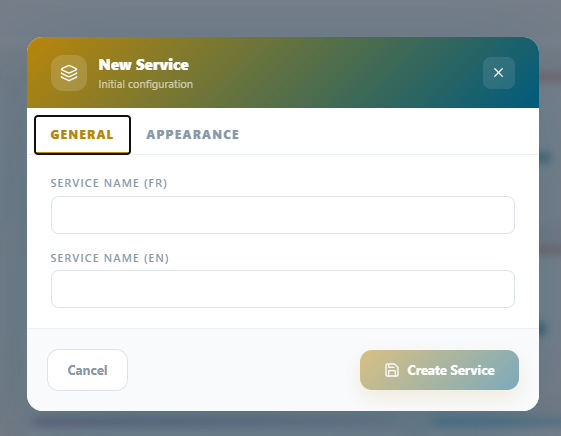 Figure 5.1 — New Service creation form Figure 5.1 — New Service creation form |
|---|
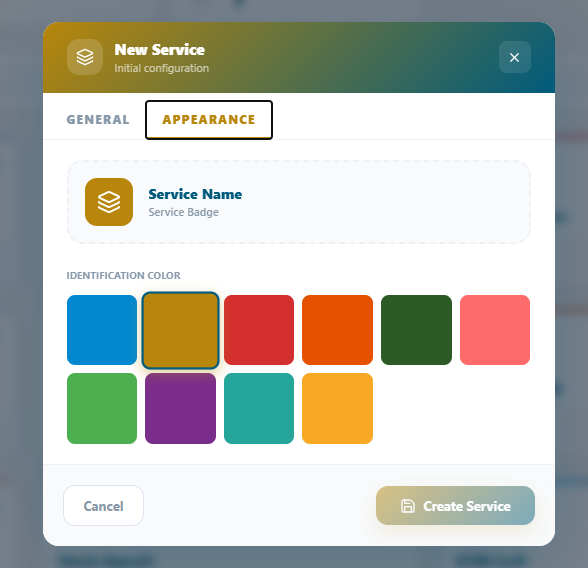 Figure 5.1 — New Service appearance color Figure 5.1 — New Service appearance color |
|---|
| NOTE | A newly created service is invisible to all agents and counters until it is (1) given at least one operation, and (2) explicitly activated for an agency. See Sections 5.4 and 5.5. |
|---|---|
5.3.2 Service Form Field Reference
| Field | Description | Status |
|---|---|---|
| Service Name (FR) | Human-readable name displayed to agents and in reports in French | Required |
| Service Name (EN) | Human-readable name displayed to agents and in reports in English | Required |
5.4 Creating Operation
Operations are the individual tasks within a service. They must be created after the parent service exists. You can add multiple operations to one service at any time even after the service is already active and being used.
5.4.1 Step by step: Add an operation to a service
Step 1 Click Services, click the name of the service you want to add operations to or identify the service u want to add operation to and click details button on the service card
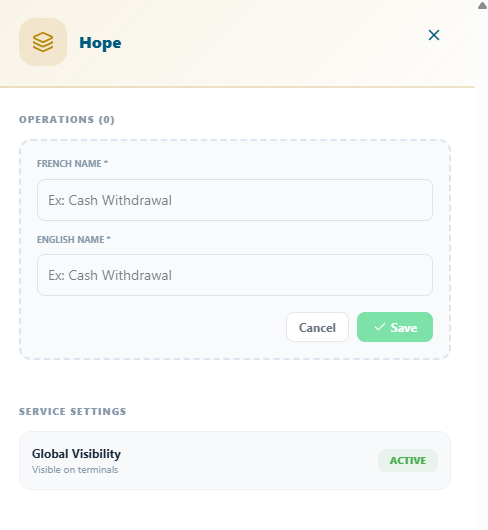
Step 2: Create a new service by clicking the “+Add” button at the top right-hand corner and fill the required field.
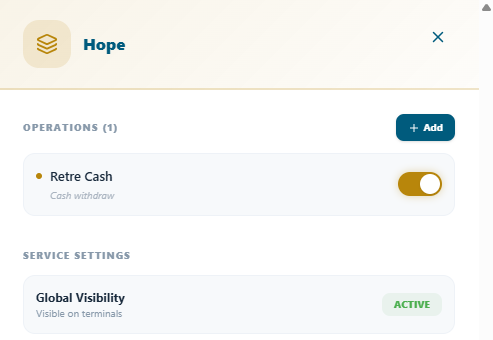 Figure 5.2 Service Detail page showing the Operations section and 'Add Operation' button Figure 5.2 Service Detail page showing the Operations section and 'Add Operation' button |
|---|
| TIP | Add all operations for a service before activating it for agencies. Adding operations to an already-active service works fine, but agents using the service at that moment won't see the new operation until their next page refresh. Moreover, You can activate and deactivate and operation in a particular service |
|---|---|
5.4.2 Operation form Field Reference
| Field | Description | Status |
|---|---|---|
| Operation Name | Action-verb name agents see when creating a ticket (e.g., 'Open Account'). For both English and French | Required |
Figure 5.2 Operation form field |
|---|
5.5 Activating Services per Agency
Creating a service in the master catalogue does not make it available to any agency automatically. Each service must be explicitly activated for each agency that needs it. This design allows different agencies to offer different service catalogues from the same master list for example, a main branch may offer all 12 services while a satellite office offers only 4.
5.5.1 Step-by-Step: Activate a Service for an Agency
Step 1: From side bar click Services
Step 2: On the top right-hand corner beside the button New Service, there is a search bar with a dropdown of all the agencies created, just select the agency you want to activate the service in
Step 3: After selecting it, the catalogue of all the Services will appear deactivated
Step 4: Click on the service in question and side bar from the right will appear
Step 5: In the side bar bellow click the green button “Enable for this agency” and after it will turn red
Step 6: Above you can also active the operation in that service for that agency is you wish
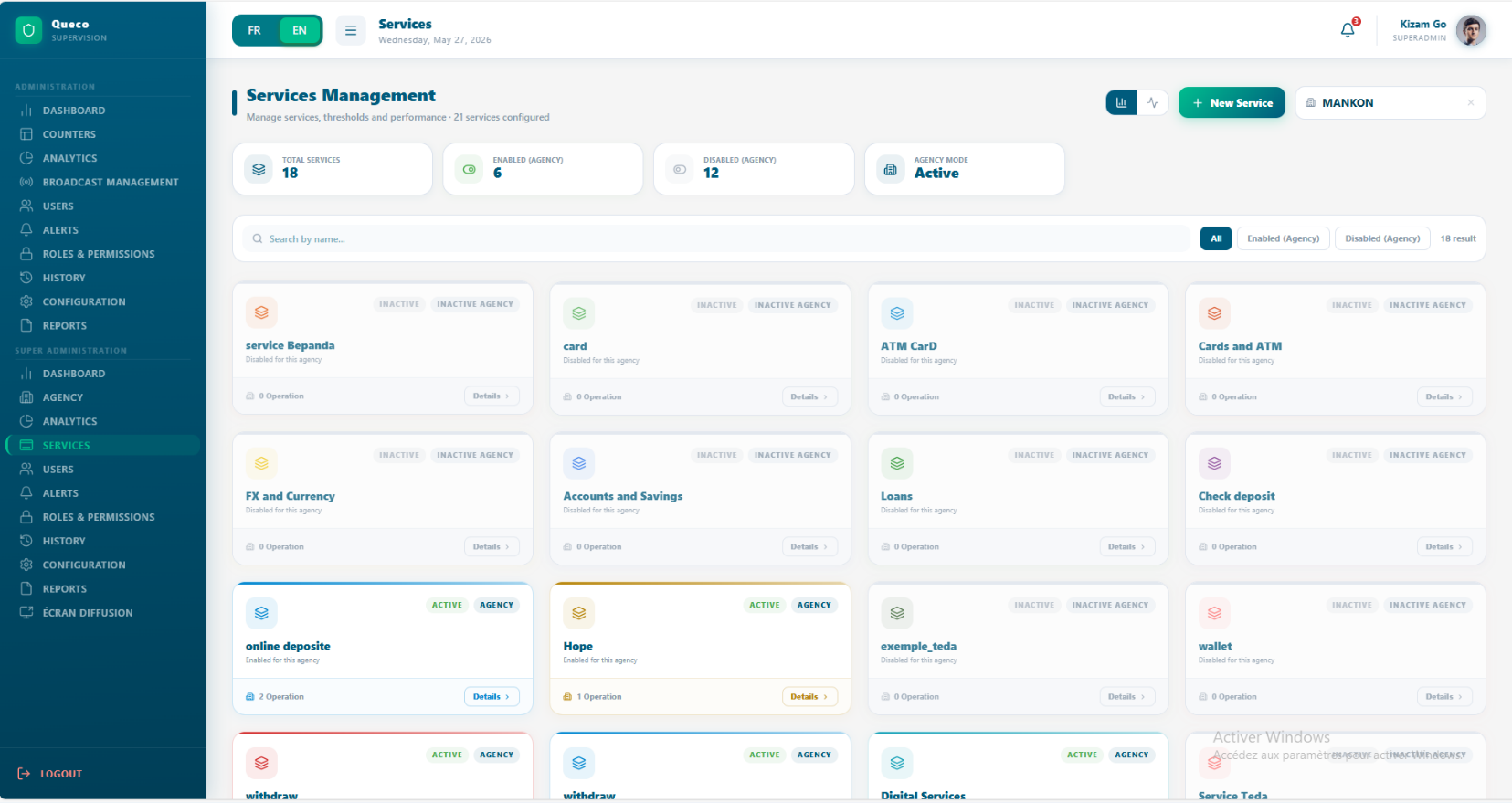 Figure 5.4 Agency Services tab showing master catalogue with activated and deactivated service for an agency (ex. Mankon) Figure 5.4 Agency Services tab showing master catalogue with activated and deactivated service for an agency (ex. Mankon) |
|---|
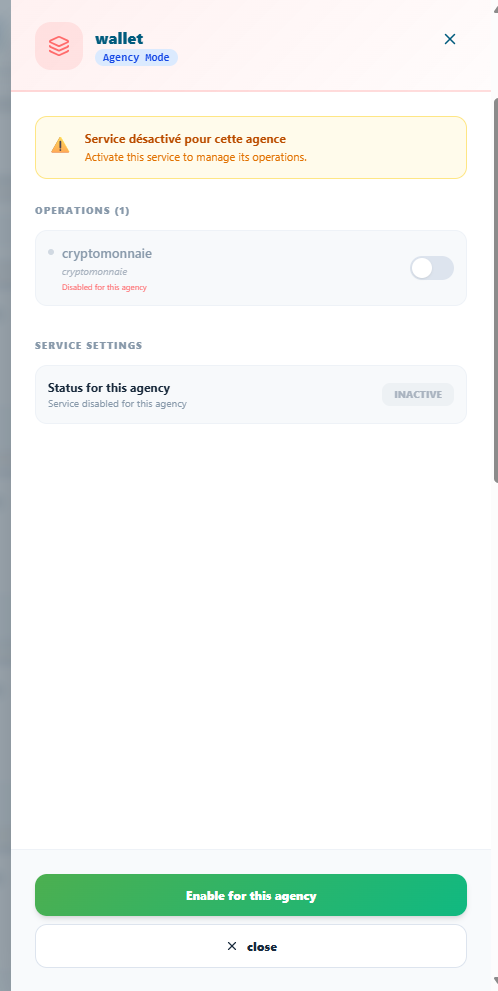 Figure 5.4 — Detail page showing how to activate a service with its operation Figure 5.4 — Detail page showing how to activate a service with its operation |
|---|
| NOTE | If a service has no operations, or its operation is deactivated, simply activate the service first then activate the operation later respective. And if a service has no operation, you could create one later. |
|---|---|
| TIP | After activating services for an agency, verify that at least one counter in that agency has been linked to each activated service. If no counter handles a service, tickets for that service will enter the queue but never be routed to an agent. |
|---|---|
5.6 Managing the Service Catalogue
Services and operations can be edited, deactivated, or achieved at any time. Understanding the impact of each action on live data is important before making changes to an active service catalogue.
5.6.1 Service Management Actions
| Action | How To Perform It |
|---|---|
| Edit a Service | Go to Services → click the service name → click Edit → modify fields → Save. |
| Deactivate a Service | Go to Services → click the service name → click deactivated → click confirm |
| Reactivate a Service | Go to Services → click the service name → click activated → click confirm |
| Delete a Service | Go to Services → click the service name → click Archive service → type the name of the service, click Confirm delete |
5.6.2 Operation Management Actions
| Action | How To Perform It |
|---|---|
| Edit an Operation | Open the service → click the operation → click Edit → modify → Save. |
| Deactivate an Operation | Open the service → toggle the operation's status Off. Agents no longer see it in the ticket creation form. Existing tickets are unaffected. |
| Reactivate an Operation | Toggle the operation's status back On. It reappears for agents immediately. |
| Delete an Operation | Open the service → click (⋮) on the operation → Delete → confirm. Permanent. Historical tickets retain a 'Deleted Operation' label. |
| Reorder Operations | Drag operation rows by the handle icon (☰) within a service. Controls the display order in the ticket form. |
| WARNING | Deleting a service or operation that has associated open (unresolved) tickets will cause those tickets to display incomplete information. Always check for open tickets before deleting. Deactivate instead of deleting when in doubt. |
|---|---|
5.6.3 Impact Matrix: Action vs Data
Use this table to understand the effect of each management action on live data before proceeding.
| Action | Open Tickets | Historical Tickets | Agency Availability |
|---|---|---|---|
| Deactivate Service | No new tickets created | Fully intact | Removed from all agencies |
| Reactivate Service | Resumes normally | Fully intact | Restored to all previously active agencies |
| Delete Service | Marked as incomplete | Labels show 'Deleted Service' | Permanently removed |
| Deactivate Operation | No new tickets for this op | Fully intact | Operation hidden in ticket form |
| Delete Operation | Marked as incomplete | Labels show 'Deleted Operation' | Permanently removed |
5.7 Service Catalogue Best Practices
A well-maintained service catalogue is the foundation of accurate analytics and efficient queue management. Follow these practices to keep the catalogue clean and effective.
Catalogue Design
-
Keep service broad and operation specific. Aim for 3 – 8 operation per service. If a service has more than 10 operations, consider splitting it into 2 services.
-
Avoid creating duplicate operation across service category.
Ongoing Maintenance
-
Review the service catalogue once per quarter. Remove or deactivate operation that are no longer operational.
-
When a service changes significantly (e.g a new process introduced) update the instruction field so that agent always have current guidance at hand.
-
Monitor the service usage report in analytics to identify operation with very low volumes
-
Never delete a service or an operation while an active initiative is running. Schedule deletions during off-peak hours and announce them to agent in advance
5.8 Chapter summary
This chapter covers the complete service catalogue workflow in Queco, from planning and naming convections through creation, activation and ongoing management. By now you should be able to;
-
Distinguish service from operations and explain how they relate to tickets.
-
Plan and document a service catalogue before configuring it in Queco
-
Create service with all required fields and consistent naming conventions
-
Add and manage operations within each service
-
Activate service for individual agencies and specific operations within them
Chapter 6